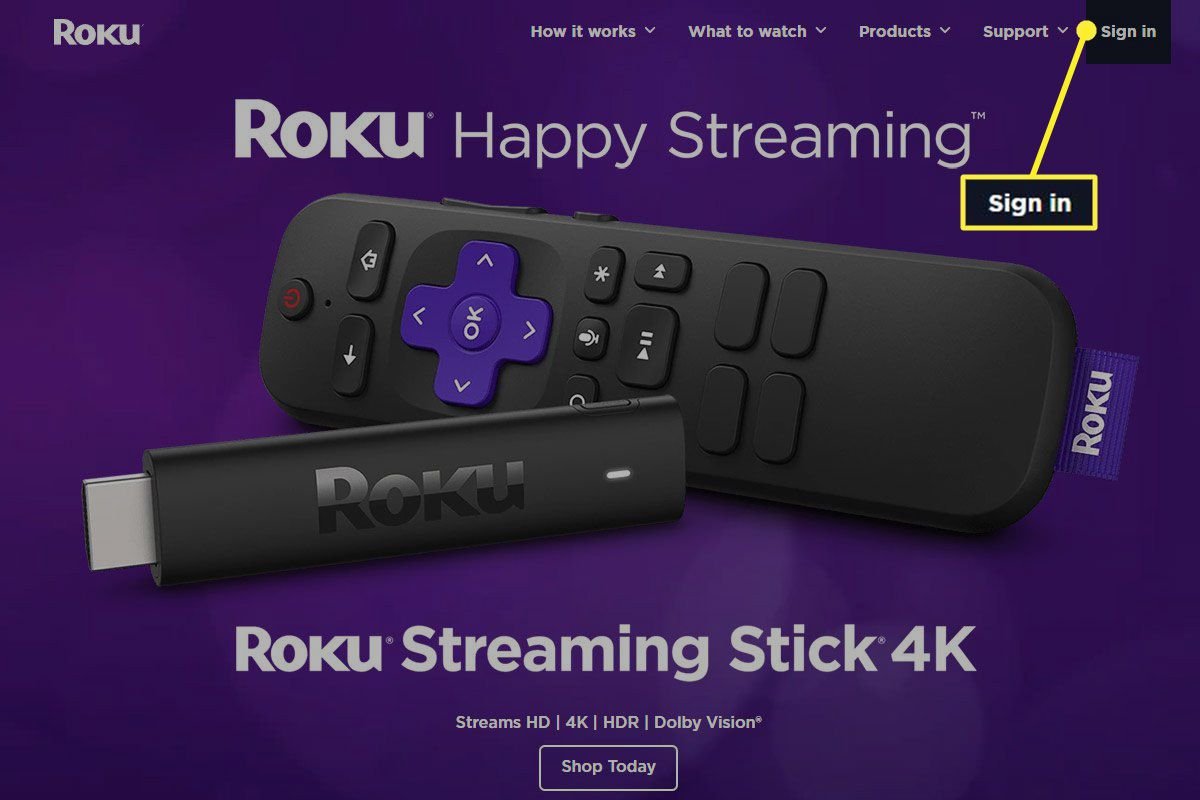
In today's streaming world, it's easy to sign up for dozens of services, and just as easy to lose track of what you're paying for. If you're a Roku user, managing those subscriptions doesn't have to be a headache. Whether you're decluttering your digital life or simply trying to cut down on monthly expenses, knowing how to cancel subscriptions on Roku effectively is key. This guide will walk you through every step, ensuring you only pay for what you truly want to watch.
Understanding Your Roku Subscriptions: What You Need to Know First
Before diving into the cancellation process, it's crucial to understand a few key distinctions. Roku acts as a hub, and how you subscribed dictates how you cancel.
- Roku Pay vs. Third-Party: Only subscriptions made directly through Roku's payment system (Roku Pay) can be managed via your Roku device or account. Many popular services, like Hulu or Disney+, are often subscribed to directly through their own websites or apps, not through Roku.
- Prepaid and Non-Refundable: Roku subscriptions are generally prepaid for the current billing cycle. This means if you cancel today, you'll still have access to the service until the end of that period, but you won't receive a refund for the unused portion. Canceling simply turns off auto-renewal, preventing future charges.
- Identify Your Billing Source: Unsure if Roku is billing you or if it's a direct subscription? The quickest way to check is by visiting my.roku.com and signing into your account, or by reviewing your bank or credit card statement for the billing entity.
Your Go-To Methods for Canceling Roku-Billed Subscriptions
Roku offers a few convenient ways to cancel subscriptions that are billed directly through its platform. Choose the method that's most convenient for you.
On Your Roku Device Using the Remote
This is often the most straightforward method, letting you manage subscriptions directly from your couch. You can approach this in two main ways: through the channel lineup on your home screen or via the Roku Channel Store. If you prefer to Cancel Roku subscriptions directly from your device, follow these steps.
Via Channel Lineup:
- Press the Home button on your Roku remote to return to the main screen.
- Highlight the channel you wish to cancel using the directional pad.
- Press the Star (*) button on your remote to open the options menu for that channel.
- Select "Manage Subscription" from the menu.
- Choose "Cancel Subscription" and press OK.
- Follow any on-screen prompts to confirm your cancellation.
Via Roku Channel Store:
- From the Home screen, navigate to "Streaming Channels" and press OK to open the Roku Channel Store.
- Find and highlight the channel you want to cancel, then press OK to go to its details page.
- Select "Manage Subscription."
- Choose "Cancel Subscription" and confirm your choice.
- Note: If "Manage Subscription" isn't visible, it indicates the subscription was not purchased through Roku.
Using the Roku Website
Managing your subscriptions online can be particularly useful if you don't have your remote handy or prefer a desktop interface. It's a reliable way to Easily manage your Roku subscriptions from any web browser.
- Open a web browser on your computer or phone and go to my.roku.com.
- Sign in with the email address and password associated with your Roku account.
- Once logged in, scroll down to the "My Account" section and click on "Manage Your Subscriptions."
- You'll see a list of all your active Roku-billed subscriptions. Find the one you want to cancel.
- Click "Unsubscribe" or "Turn Off Auto-Renew" next to the relevant channel.
- Follow the prompts to confirm the cancellation. Consider taking a screenshot of the confirmation page for your records.
Using the Roku Mobile App
The Roku mobile app (available for iOS and Android) offers another convenient way to manage your account and subscriptions on the go.
- Download or open the Roku app on your smartphone or tablet and sign in to your Roku account.
- Tap on the Account Avatar icon, usually located in the bottom right corner of the app.
- Select "Payments and Subscriptions."
- Locate the subscription you wish to cancel from the list.
- Tap "Cancel Subscription" or "Turn Off Auto-Renew."
- Confirm the cancellation when prompted.
Canceling Third-Party Subscriptions Not Billed by Roku
Sometimes, a subscription you access through your Roku device isn't actually billed by Roku. This is common for major streaming services like Netflix, Hulu, or Max, where you created an account and provided payment details directly to them. When this happens, you'll need to Cancel subscriptions not billed by Roku through their respective platforms.
- How to Identify: If you don't see a "Manage Subscription" option on your Roku device or on my.roku.com, it's likely a third-party subscription. Check your bank or credit card statements to see who is charging you (e.g., "Hulu," "Disney+").
- The Process: Once you identify the billing entity, visit their official website or open their dedicated app. Log in to your account and look for sections like "Account," "Subscriptions," "Billing," or "Manage Membership" to find the cancellation option. Each service's interface will vary slightly.
What Happens After You Cancel? Refunds and Verification
Canceling a Roku subscription simply turns off its auto-renewal. This means you won't be charged again when the next billing cycle begins.
- No Refunds: Remember, Roku subscriptions are prepaid and non-refundable. You'll retain access to the content until the current billing period officially ends.
- Free Trials: For free trials, canceling usually prevents you from being charged once the trial period expires. Access might end immediately or at the end of the trial, depending on the service.
- Verify Your Cancellation: To ensure everything went through correctly, you can always revisit my.roku.com and check the "Manage Your Subscriptions" section. Canceled subscriptions should show "Cancelled" or indicate that auto-renewal is off. For a deeper dive into this, you can Verify Roku cancellations and refunds to ensure peace of mind.
Troubleshooting Common Cancellation Issues
Even with clear steps, you might run into a snag. Here's how to address some frequent problems when trying to cancel Roku subscriptions. For a more comprehensive guide on how to Troubleshoot Roku cancellation issues, check out our dedicated pillar guide.
- "Manage Subscription" Option is Missing: This is the most common indicator that the subscription isn't billed by Roku Pay. Double-check your bank statement for the actual billing entity and cancel directly with them.
- You're on the Wrong Roku Account: If you have multiple Roku accounts (perhaps one for you and one for a family member), ensure you're logged into the correct one. On your Roku device, go to Settings > System > About to see the linked email address.
- Still Being Charged After Canceling: First, verify your cancellation status on my.roku.com. If it shows "Cancelled" but charges persist, gather your account details and contact Roku's Accounts and Billing team directly via support.roku.com.
- Subscription Not Listed but You're Sure It's Roku-Related: This could again point to being on the wrong account, or a slight delay in the system updating. Give it a day, re-check, and if it still doesn't appear, contact Roku support with your bank statement details.
Pro Tips for Smarter Subscription Management
Staying on top of your streaming services can save you money and reduce stress.
- Centralize When Possible: If you prefer managing everything in one place, consider signing up for channels through Roku Pay whenever that option is available.
- Set Calendar Reminders: For free trials, set a reminder a day or two before the trial ends to decide if you want to keep the service.
- Review Statements Monthly: Make it a habit to check your bank and credit card statements for any unexpected or unwanted charges.
- Keep a Master List: A simple spreadsheet or note on your phone listing your subscriptions, renewal dates, and costs can be incredibly helpful.
- Regular Evaluation: Periodically review all your subscriptions. Are you still using them? Are they worth the cost? Don't be afraid to cancel and re-subscribe later if needed.
- Declutter Your Home Screen: Once you've canceled a service, consider removing the channel from your Roku home screen to keep things tidy.
- Consider Virtual Cards: Services like Privacy.com allow you to create virtual credit card numbers with spending limits or one-time use, which can be useful for managing subscriptions and free trials securely.
When to Contact Roku Support
If you've followed all the steps and are still experiencing persistent issues, don't hesitate to reach out for assistance.
- Visit support.roku.com and navigate to the "Account, Payments & Subscriptions" section.
- You might find options to chat with a live representative or call their billing department directly.
- Be prepared with your Roku account email address, the name of the channel, and any relevant details from your bank statement (date of charge, amount).
- For subscriptions not billed by Roku, remember to contact that specific service provider's customer support.
Considering Closing Your Roku Account (A Permanent Action)
Closing your entire Roku account is a drastic and irreversible step. All your subscriptions, channel purchases, and account history will be permanently lost. Only consider this if you genuinely no longer wish to use any Roku services or devices.
- Cancel All Active Subscriptions First: Ensure all recurring charges are stopped before proceeding.
- Go to my.roku.com: Sign in to your account.
- Click "Deactivate Account": Follow the on-screen prompts to confirm this action.
- Factory Reset Your Device(s): Perform a factory reset on any Roku players or TVs you own to unlink them from your account. You'll need a new account to use them again in the future.
Frequently Asked Questions
Are Roku subscriptions refundable if I cancel early?
No, Roku subscriptions are prepaid and generally non-refundable. You will retain access until the end of the current billing cycle.
How can I tell if a subscription was purchased through Roku?
Visit my.roku.com and sign in. Under "Manage Your Subscriptions," you'll see a list of all services billed directly by Roku. If it's not there, it's a third-party subscription.
What happens if I cancel a free trial?
Canceling a free trial will prevent you from being automatically charged when the trial period ends. Access to the content may stop immediately or continue until the trial's conclusion, depending on the specific service.
Can I cancel a Roku subscription without my remote?
Yes! You can cancel using the Roku website (my.roku.com) or through the Roku mobile app on your smartphone or tablet.
Managing your Roku subscriptions is a straightforward process once you understand the key differences between Roku-billed and third-party services. By utilizing your Roku device, the website, or the mobile app, you can easily control your streaming expenses. Staying organized and regularly reviewing your subscriptions will ensure you're always in command of your digital entertainment budget.