Modern streaming has given us an unprecedented universe of content, but it's also created a new kind of "bill shock." Those monthly charges for Netflix, Hulu, Disney+, and countless other services can quietly accumulate, turning your entertainment budget into a black hole. If you've found yourself staring at your bank statement, wondering, "What is that 'Roku' charge, anyway?" or "How do I even begin to untangle all my streaming services?", you're not alone. This comprehensive guide will walk you through exactly how to view and manage all active subscriptions on your Roku account, putting you back in control of your streaming spend.
Roku, as a platform, aims to be your central hub for entertainment, but it's easy to get confused about which subscriptions are managed through them and which are direct with the service provider. Understanding this key distinction is the first, most important step to becoming a master of your media budget.
At a Glance: Key Takeaways for Roku Subscription Management
- Roku devices are free to use: You don't pay a monthly fee just for owning a Roku player or Roku TV.
- Two types of subscriptions: Some services are billed directly by Roku (via "Roku Pay"), others are billed by the service provider (e.g., Netflix directly).
- Only Roku-billed subscriptions are managed via your Roku account.
- How to identify Roku-billed: Check your bank statement for "Roku" charges and look under "My Subscriptions" on my.roku.com.
- Manage on device or website: You can cancel Roku-billed subscriptions directly from your Roku device or through your account on my.roku.com.
- Purchase history is separate: See all Roku transactions (subscriptions, movie rentals, device purchases) on my.roku.com.
- Removing an app doesn't cancel a subscription: You must cancel the subscription first, then remove the app if desired.
Understanding the Roku Subscription Landscape: Free vs. Paid & Who's Billing You
Before diving into the "how-to," let's clarify a few fundamental points about Roku and subscriptions. Many users mistakenly believe Roku itself requires a monthly fee. This isn't the case. Your Roku device is a portal, offering access to thousands of channels, many of which are completely free. However, popular premium streaming services often require their own separate paid subscriptions.
Think of your Roku device like a universal remote for your entire entertainment world. It gathers all your streaming options in one place. But just like a universal remote doesn't pay for your cable TV package, your Roku doesn't pay for your streaming subscriptions. What it can do, however, is act as a billing intermediary for some of those services.
What's Free on Roku? More Than You Think!
Part of managing your subscriptions effectively means knowing what you don't have to pay for. Roku offers a robust selection of free content, often ad-supported, that can significantly reduce your need for premium services. These include:
- The Roku Channel: Roku's own ad-supported service with a rotating library of movies, TV shows, and live linear channels.
- Major Free Streaming Apps: Services like YouTube, PBS, Crackle, Pluto TV, Tubi, Peacock (free tier), and Freevee offer thousands of hours of content without a subscription.
- News: ABC News Live, CBS News, NBC News, Reuters TV, and local news channels.
- Kids' Content: PBS Kids, Cartoon Network, Nick Jr. (often with some free episodes or requiring a TV provider login for full access).
- Music: Pandora, iHeartRadio, TuneIn Radio.
These free options are a great way to supplement or even replace some of your paid subscriptions, especially if you're looking to cut costs.
The Critical Distinction: Roku-Billed vs. Provider-Billed Subscriptions
This is the cornerstone of effective Roku subscription management. You can only manage subscriptions that are billed directly through your Roku account. These are often referred to as "Roku Pay" subscriptions. If you signed up for a service directly on its website (e.g., netflix.com, hulu.com), Roku has no control over that billing, even if you watch the service through your Roku device.
Why this distinction matters: Trying to cancel a Netflix subscription through your Roku account won't work if you signed up for Netflix on their website. You'd need to go to Netflix's website or app to manage it. This is a common source of frustration for users, but once you understand it, managing your subscriptions becomes much simpler.
Identifying Your Roku-Billed Subscriptions: The Digital Paper Trail
How do you know if a subscription is billed through Roku or directly by the service provider? There are two reliable methods:
1. Check Your Bank or Credit Card Statement
The clearest indicator is often your financial statement. Look for charges that explicitly say "Roku" in the description. If you see "Netflix," "Hulu," "Disney+," or a similar service name without "Roku" alongside it, chances are that subscription is direct with the provider.
Expert Tip: Many banks and credit card companies now offer digital tools that allow you to search transactions. A quick search for "Roku" can quickly highlight all your Roku-billed payments.
2. Check Your Roku Account Online
This is the definitive way to see what Roku believes it's billing you for.
- Go to my.roku.com on a web browser (computer or mobile).
- Log in to your Roku account. Ensure you're using the exact email address and password associated with your Roku devices. This is crucial if you have multiple Roku accounts.
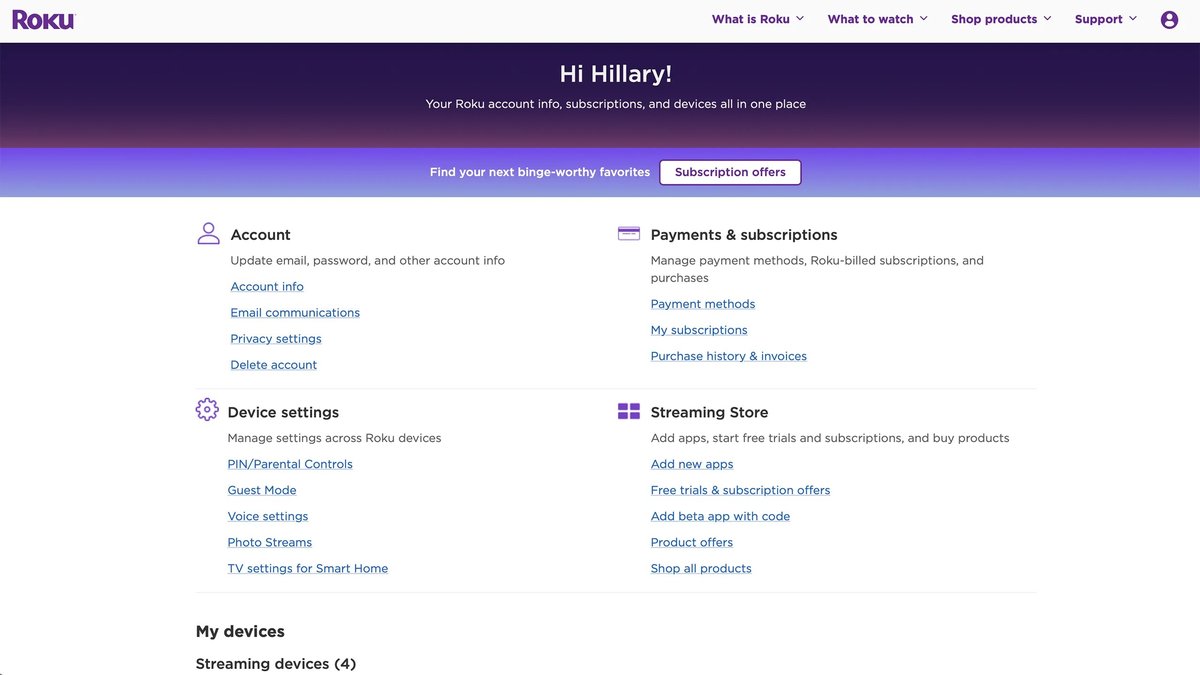
- Once logged in, navigate to the "Payments & Subscriptions" section.
- Click on "My Subscriptions" (sometimes labeled "Manage your subscriptions").
This page will list all active subscriptions that are currently being billed through your Roku account. If a streaming service you subscribe to isn't on this list, it means Roku isn't billing you for it, and you'll need to manage it elsewhere.
What about the Roku Smart Home Subscription?
It's important to note that the Roku Smart Home Subscription is a separate service for controlling smart home devices (like cameras or doorbells) through your Roku ecosystem. While it is billed by Roku, it's distinct from your streaming channel subscriptions and will appear on your "My Subscriptions" page if active.
Your Control Center: Managing Roku-Billed Subscriptions
Once you've identified which subscriptions Roku is billing you for, managing them is straightforward. You have two primary methods: directly from your Roku device or via the Roku website.
Managing Subscriptions Directly from Your Roku Device
This is often the quickest way to manage a subscription if you're already settled in front of your TV.
- Press the Home button on your Roku remote. This takes you to your main channel grid.
- Highlight the channel whose subscription you want to manage. Don't open the channel, just hover over its icon.
- Press the Star (*) button on your Roku remote. This opens a small options menu for that specific channel.
- Select "Manage Subscription" from the options.
- On the next screen, you'll see details about your subscription, including the renewal date. You'll usually find options like "Cancel subscription" or "Turn off auto-renew." Select the one that applies to your desired action.
- Confirm your choice when prompted. Roku might ask for a reason for cancellation; providing feedback is optional.
Once confirmed, your subscription will typically remain active until the end of its current billing cycle, but it won't auto-renew.
Managing Subscriptions from the Roku Website (my.roku.com)
For a comprehensive overview and more detailed control, the Roku website is your best bet.
- Visit my.roku.com in a web browser.
- Log in to your Roku account.
- On the main account screen, scroll down to the "Payments & Subscriptions" section.
- Click on "My Subscriptions."
- In the "Active Subscriptions" section, you'll see a list of all your Roku-billed services.
- Find the channel you wish to manage and click the "Manage Subscription" button next to it.
- Here, you'll see the option to "Turn off auto-renew" to cancel the recurring billing.
- You'll likely be prompted to provide a reason for cancellation and then click "Continue to cancel."
Pro Tip: From this "My Subscriptions" page, you can also opt to receive email reminders before your next payment date for each subscription. This is a fantastic way to prevent unwanted auto-renewals for services you might be trying out or planning to cancel.
Unsubscribing Made Simple: Canceling Roku-Billed Services
The process of canceling is essentially the same as managing, with a specific focus on stopping the auto-renewal. Whether you're doing it from your device or the website, the key is to find the "Turn off auto-renew" or "Cancel subscription" option.
Remember, canceling a subscription typically means it will remain active until the end of its current billing period. For example, if you cancel a monthly subscription on the 15th, but your billing cycle ends on the 30th, you'll still have access until the 30th. Roku will usually confirm the effective cancellation date.
For a detailed walkthrough on stopping those recurring charges, you might find our guide on how to cancel subscriptions on Roku particularly helpful. It dives deeper into common scenarios and troubleshooting tips for a smooth cancellation process.
What About Subscriptions Not Billed Through Roku?
This is where many users hit a snag. If a subscription isn't listed under "My Subscriptions" on my.roku.com, it means you subscribed directly with the service provider. For these, your Roku account has no way to manage or cancel the billing.
Here's what to do for provider-billed subscriptions:
- Identify the provider: Confirm which service it is (e.g., Netflix, Hulu, HBO Max, Disney+, Amazon Prime Video).
- Go to their platform: Visit the service provider's official website (e.g., netflix.com, hulu.com, hboma.x.com).
- Log in to your account there: Use the email and password you created specifically for that service.
- Navigate to their "Account," "Profile," or "Subscriptions" section: The exact wording varies by provider.
- Manage or cancel directly: Follow their specific instructions to update payment info, change your plan, or cancel your subscription.
This might seem like an extra step, but it ensures you're managing the subscription at its source, where all your account details are held.
Keeping Track: Viewing Your Roku Purchase History and Invoices
Beyond just active subscriptions, Roku also offers a comprehensive purchase history. This includes not only your recurring subscriptions but also one-time purchases like movie rentals, digital content, or even certain smart home accessories if purchased through your Roku account. This is invaluable for financial oversight and reconciling your bank statements.
To view your full purchase history:
- Go to my.roku.com and log in to your account.
- From the "My Roku home screen," scroll down to the "Payments & Subscriptions" section.
- Click on "Purchase History and Invoices."
This screen provides a detailed breakdown of your Roku-related spending. You'll see:
- Total monthly costs: An aggregate view of your spending.
- Cost of each subscription: Itemized charges for every service.
- Auto-pay dates: When your next payments are scheduled.
- One-time purchases: Any movies, games, or other content you've bought.
Having this information centralized helps you understand exactly what you're paying Roku for, which is a big step towards budgeting and ensuring there are no surprise charges.
Decluttering Your Device: Removing an Unwanted Channel (App)
It's important to distinguish between canceling a subscription and removing an app from your Roku device. Canceling a subscription stops the recurring payment. Removing an app simply de-clutters your home screen. While you often want to do both for services you no longer use, the order matters for paid channels.
For Paid Channels (with a subscription):
- First, cancel the subscription. Use the steps outlined above (either on your Roku device or my.roku.com) to turn off auto-renew. If you remove the app first, the subscription might still continue to bill you.
- Then, remove the app:
- Press the Home button on your Roku remote.
- Navigate to the channel icon you wish to remove.
- With the channel highlighted, press the Star (*) key on the remote.
- Select "Remove App" from the options menu.
For Free Channels:
You don't need to cancel anything for free channels. Simply follow steps 2-4 above to remove them from your device if you no longer want them on your home screen.
Removing unused channels keeps your Roku interface clean and can sometimes even free up a small amount of space on your device, though this is rarely a concern for streaming apps.
Common Questions & Smart Strategies for Subscription Management
Even with the steps laid out, a few common questions and scenarios pop up for Roku users.
"What if I can't find 'Manage Subscription'?"
If you highlight a channel and press the Star (*) button, but don't see "Manage Subscription" as an option, it's a strong indicator that the subscription for that channel is not billed through Roku. In this case, you'll need to manage it directly with the service provider as described earlier.
"I signed up for a free trial through Roku. How do I cancel it?"
Free trials billed through Roku work exactly like regular subscriptions. Follow the same "Manage Subscription" steps on your device or my.roku.com to "Turn off auto-renew" before the trial period ends. Roku will usually send you an email reminder a few days before your trial converts to a paid subscription, so keep an eye on your inbox.
"Can I pause a subscription?"
Roku's system generally supports "cancel" or "turn off auto-renew," rather than "pause." If you need to pause a service, you'd typically cancel it and then re-subscribe later. Some individual service providers (like Hulu or YouTube TV) offer a pause feature directly on their platforms, so check with them if that's an option you need.
Smart Strategies for Ongoing Subscription Management
- Audit Regularly: Make it a habit to check your "My Subscriptions" on my.roku.com and your bank statements quarterly. This helps catch forgotten subscriptions and ensures you're only paying for what you use.
- Use a Spreadsheet or App: For all your streaming services (Roku-billed or otherwise), keep a simple list in a spreadsheet or a dedicated subscription management app. Note the service, monthly cost, billing date, and how it's billed (Roku or direct).
- "Subscription Cycling": If you have multiple niche streaming services, consider "cycling" them. Subscribe to one for a month or two, watch everything you want, then cancel and subscribe to another. This saves money while still letting you access all the content.
- Leverage Free Tiers & Ad-Supported Options: As mentioned, Roku offers a wealth of free content. Explore these options before committing to another paid service. Services like Peacock and Pluto TV have strong free offerings.
- Set Calendar Reminders: If you sign up for a free trial, immediately put a reminder in your calendar a few days before it expires to decide whether to keep or cancel.
Your Roku Subscriptions: A Path to Clarity and Control
Taking control of your Roku subscriptions, and indeed your entire streaming ecosystem, might seem daunting at first. However, by understanding the fundamental distinction between Roku-billed and provider-billed services, and utilizing the clear steps provided by Roku, you can quickly gain clarity.
Regularly reviewing your active subscriptions, leveraging Roku's online tools, and making informed choices about what you watch and how you pay for it will not only save you money but also reduce the mental clutter of managing countless digital services. Your entertainment should be a source of joy, not financial stress. Now, armed with this knowledge, you can ensure your Roku experience is exactly that – joyful and entirely on your terms.